The transport ladder
Tries the fastest path first and steps down only if needed, with no settings to fiddle with.
LAN (same Wi-Fi) fastest
Wi-Fi Direct / Hotspot no router
QR / NFC off-grid no network
Clipboard Share syncs text and sends files between your Android phone and Windows PC, directly, device to device. Pair once by confirming a 6-digit code, then move files over your network or completely off-grid via QR or NFC. Encrypted end to end; nothing ever touches a server.
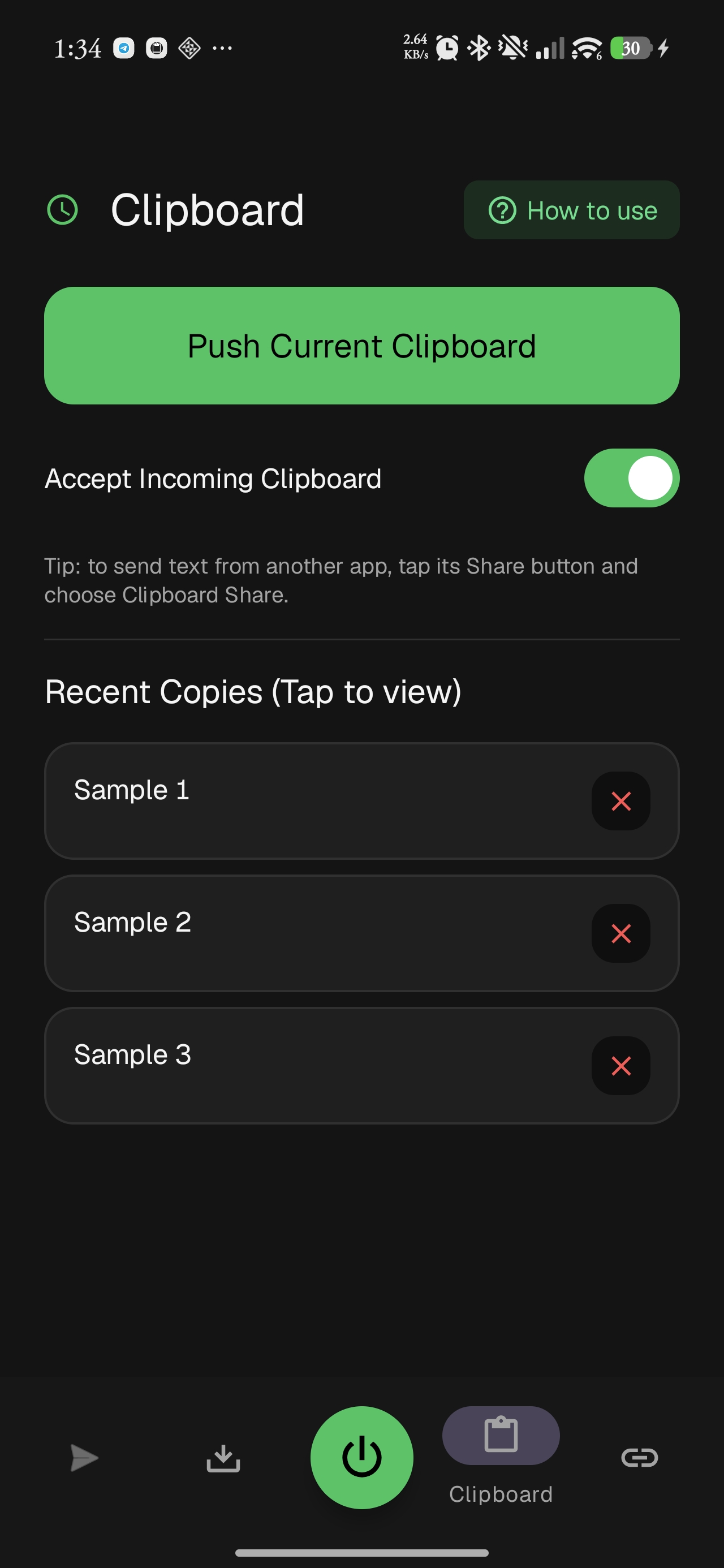
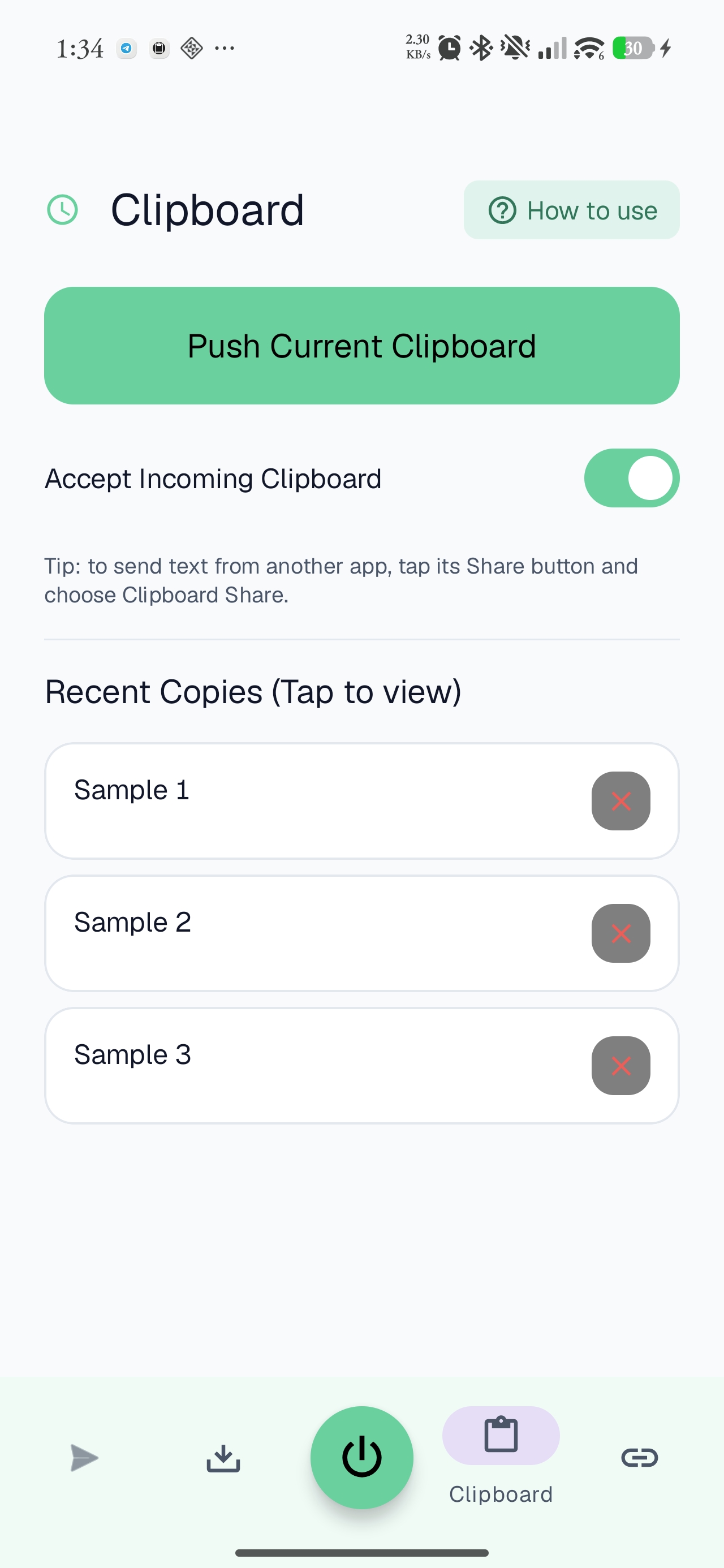
Copy a link, a code snippet, an address on one device and it's ready to paste on the other. Sync runs quietly in the background, or push it on demand.
Photos, videos, documents, whole folders, even APKs. Multi-gigabyte transfers move device to device, and pick up right where they left off if the link drops.
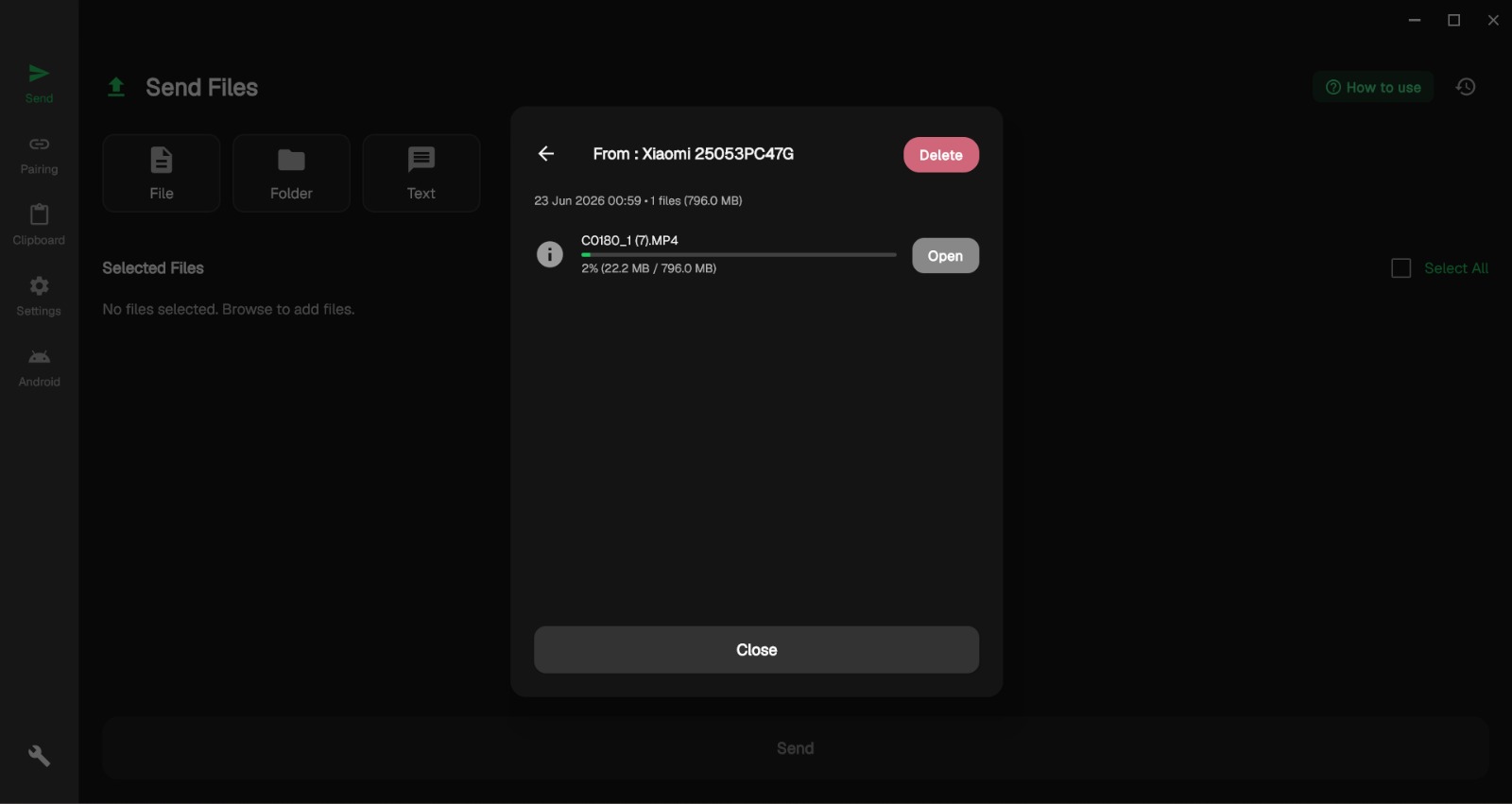
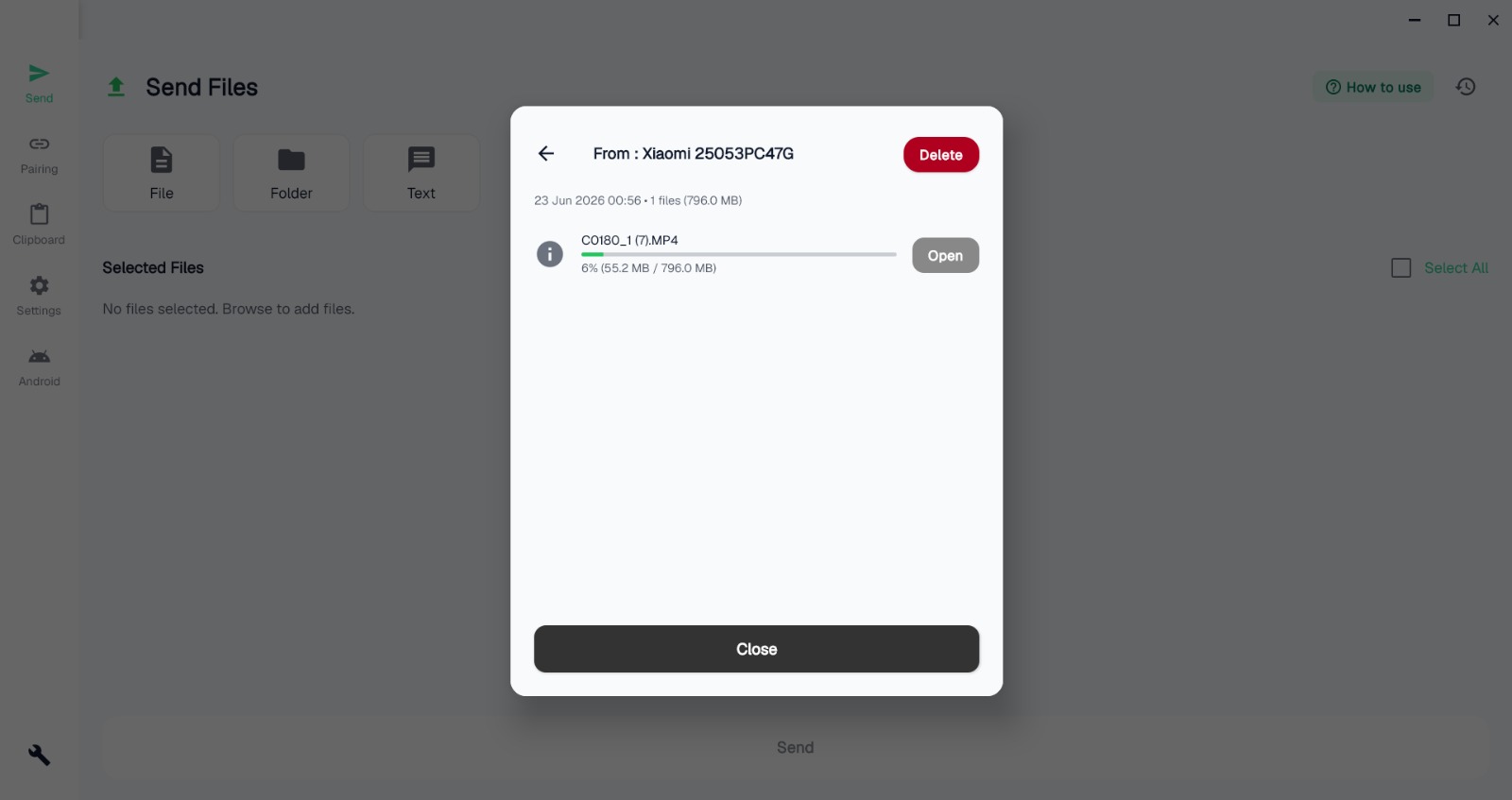
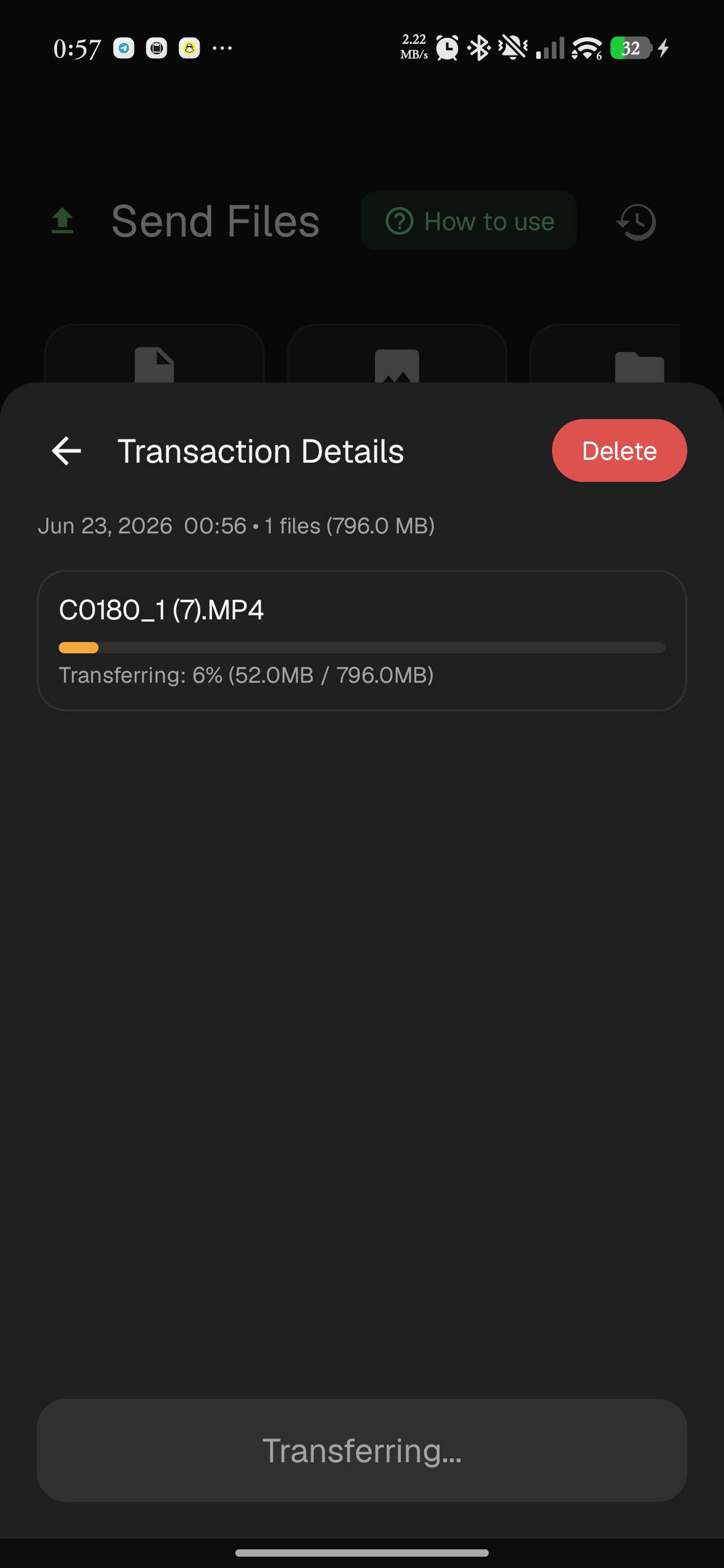
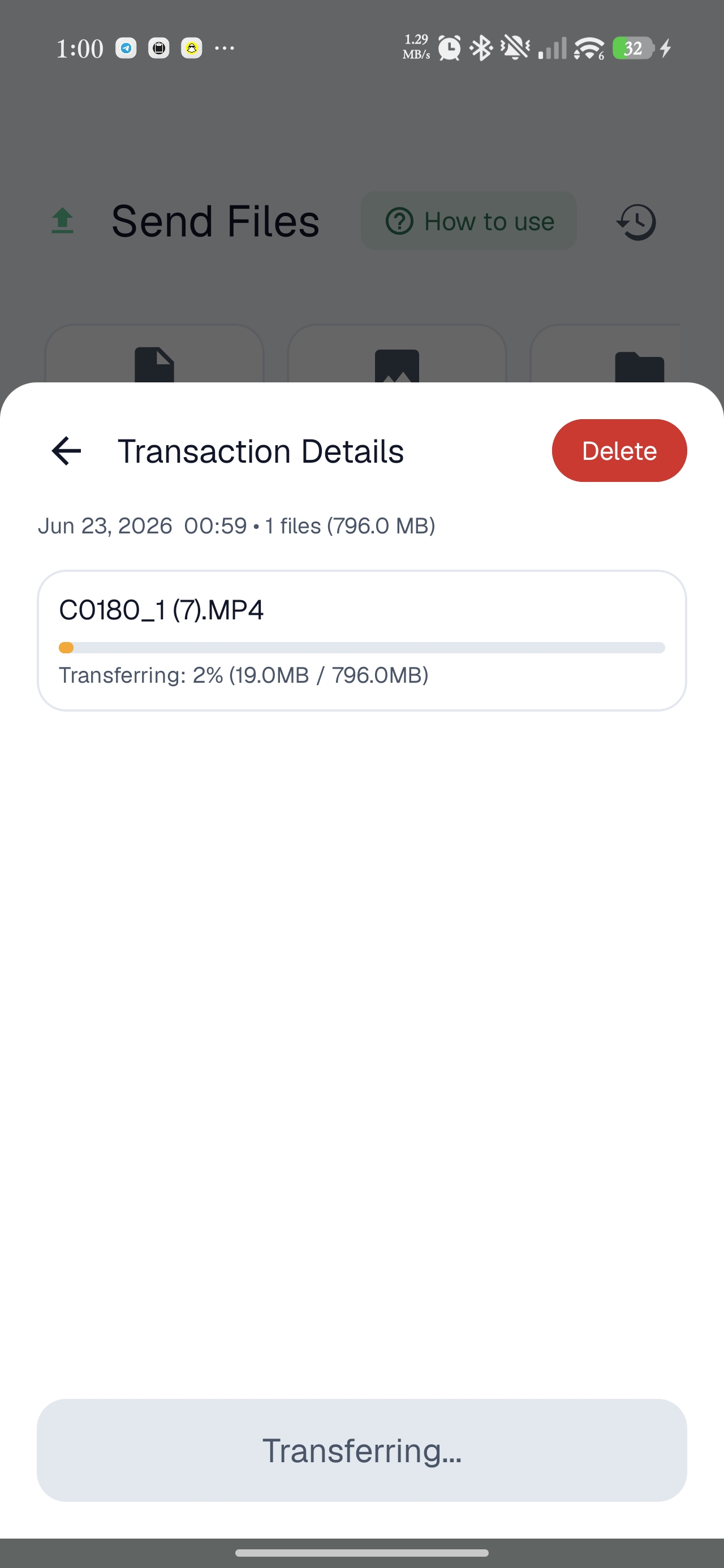
Clipboard Share automatically finds the fastest link between your devices, and falls back gracefully when there's no router in sight.
Tries the fastest path first and steps down only if needed, with no settings to fiddle with.
Tap two phones to start an off-grid file transfer, no network needed. Android
Scan a QR to send or receive files with no shared Wi-Fi. Both platforms.
One device hosts and the other joins, with no shared network required.
Send straight from any Android app's share button. Android
Browse past transfers and copies.
“Push to PC” from the Android pull-down, without opening the app. Android
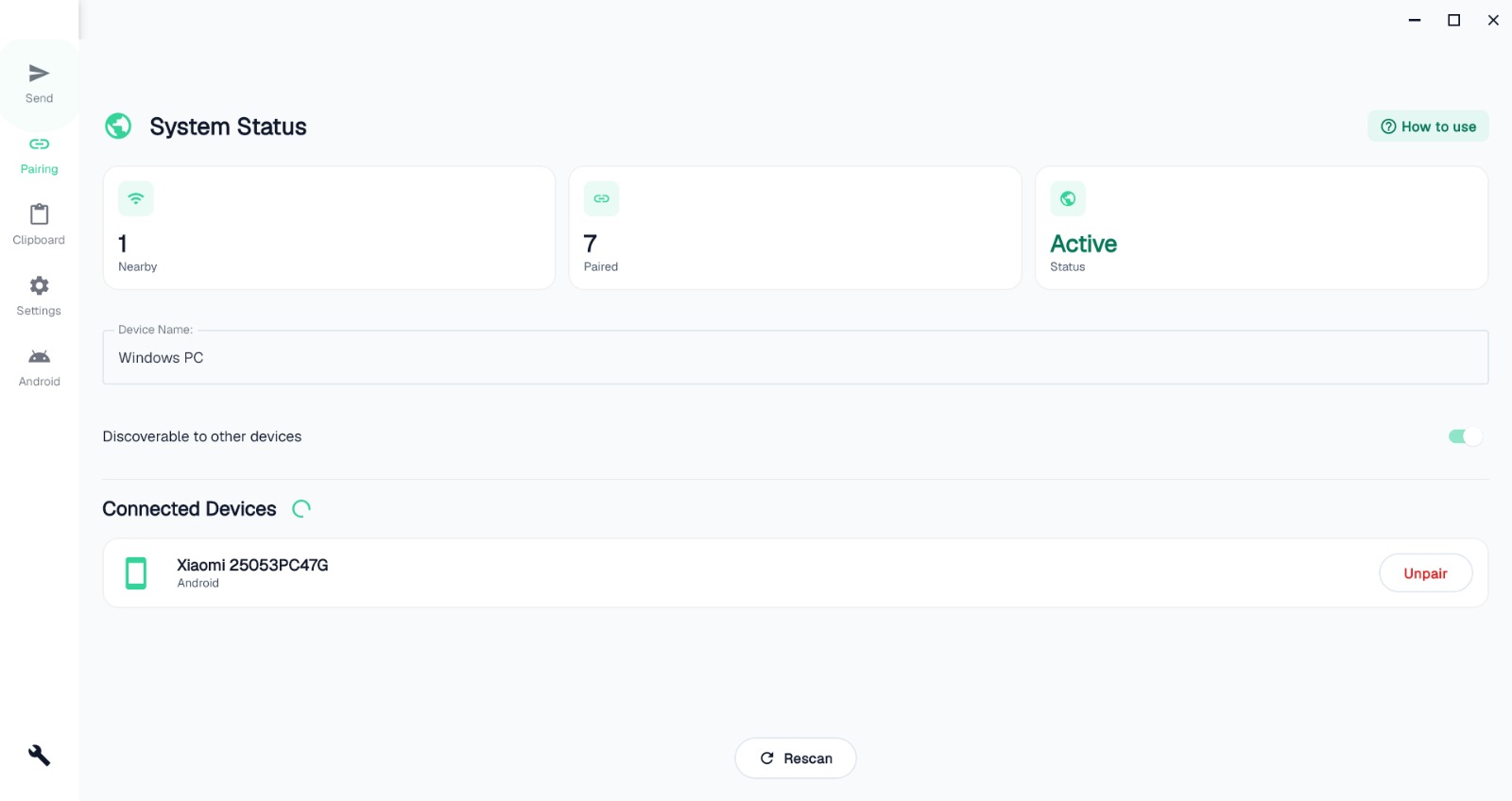
A considered theme on both platforms. Try the toggle up top.
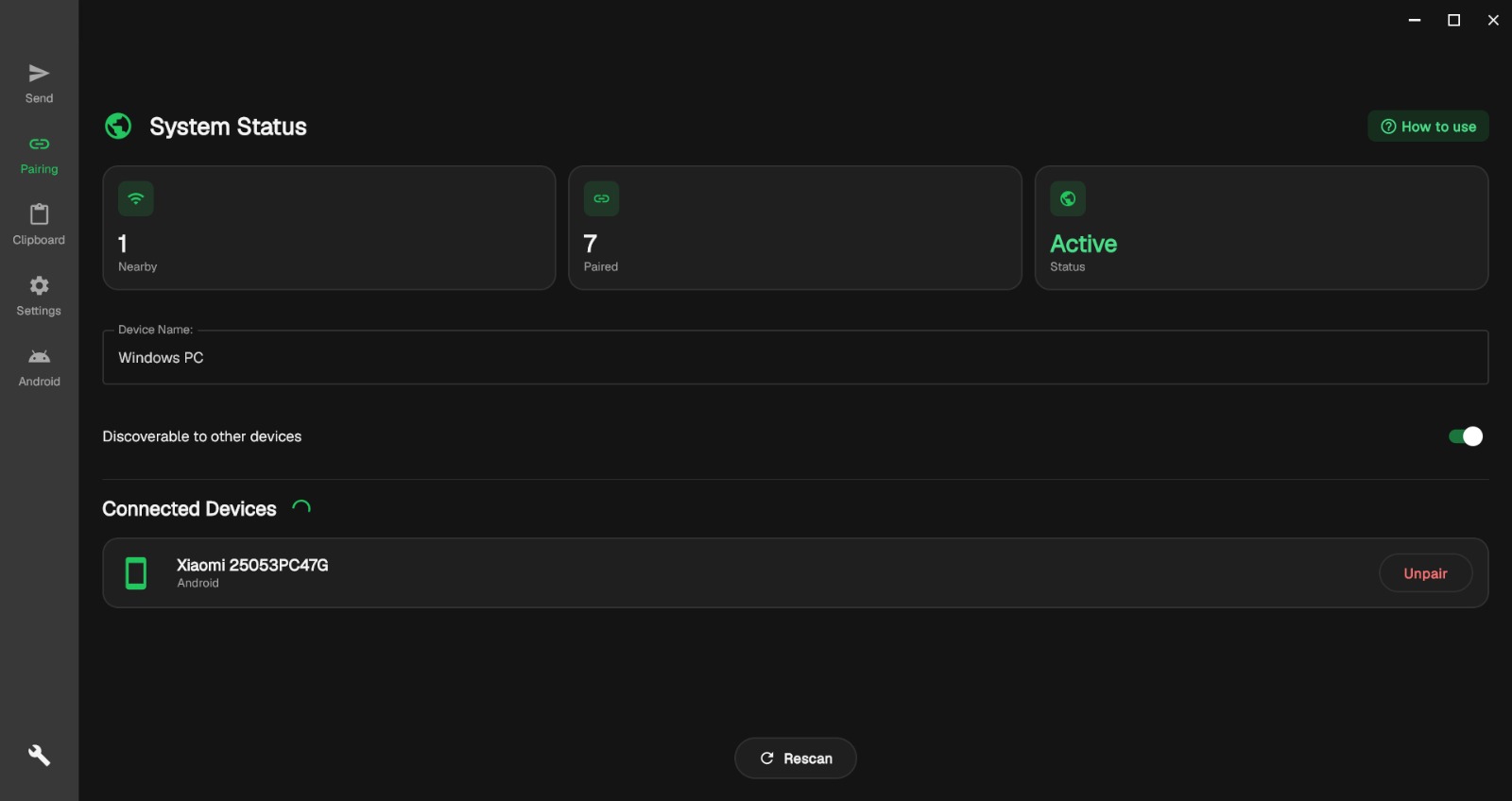
On the same network, devices discover each other automatically, ready to pair.
Both devices show a 6-digit code. Confirm they match and accept; that blocks impostors.
Clipboard syncs automatically; send files over the network, or off-grid via QR / NFC when there's no shared Wi-Fi.
There is no cloud to breach and no account to leak. Pairing is verified face-to-face with a 6-digit code, and everything in flight is encrypted with keys that exist only on your hardware.
Read the FAQ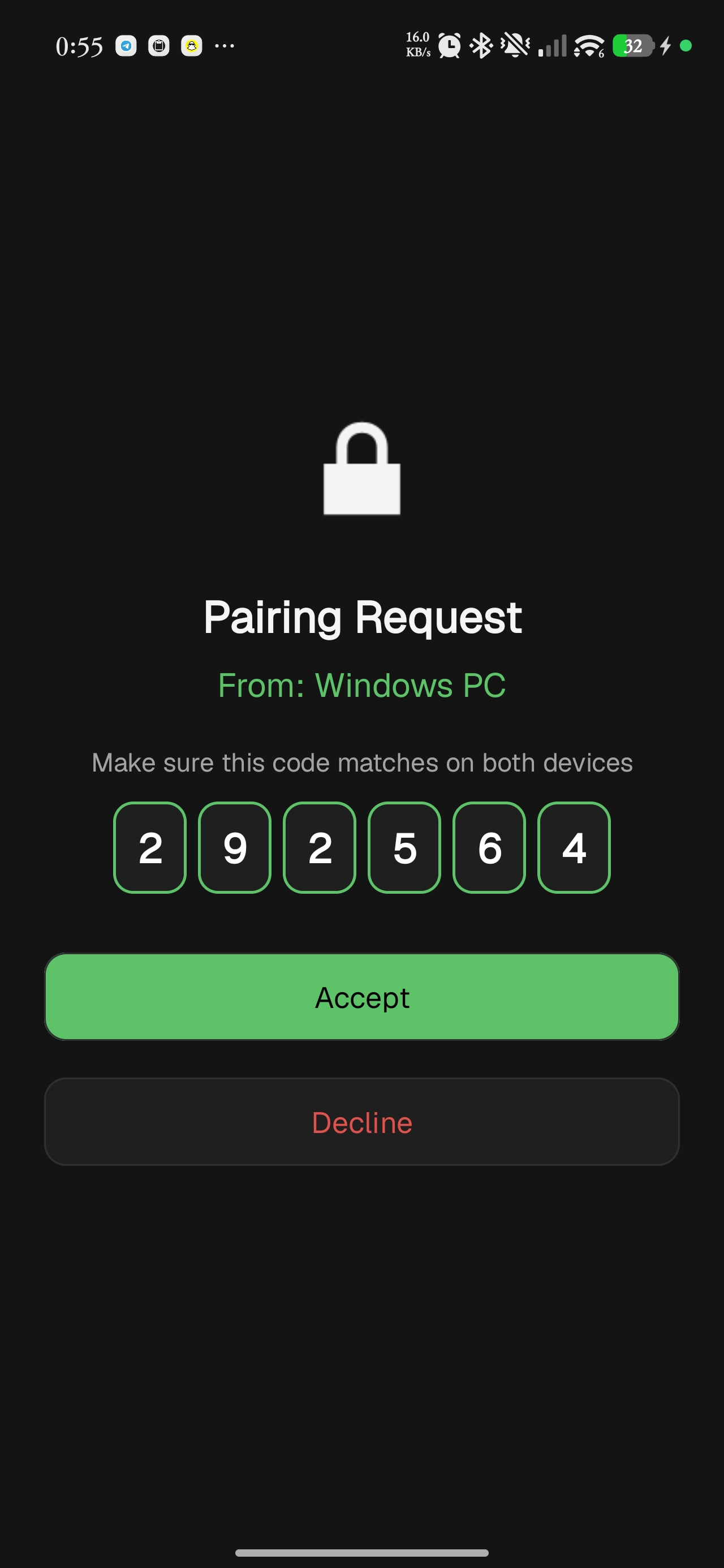
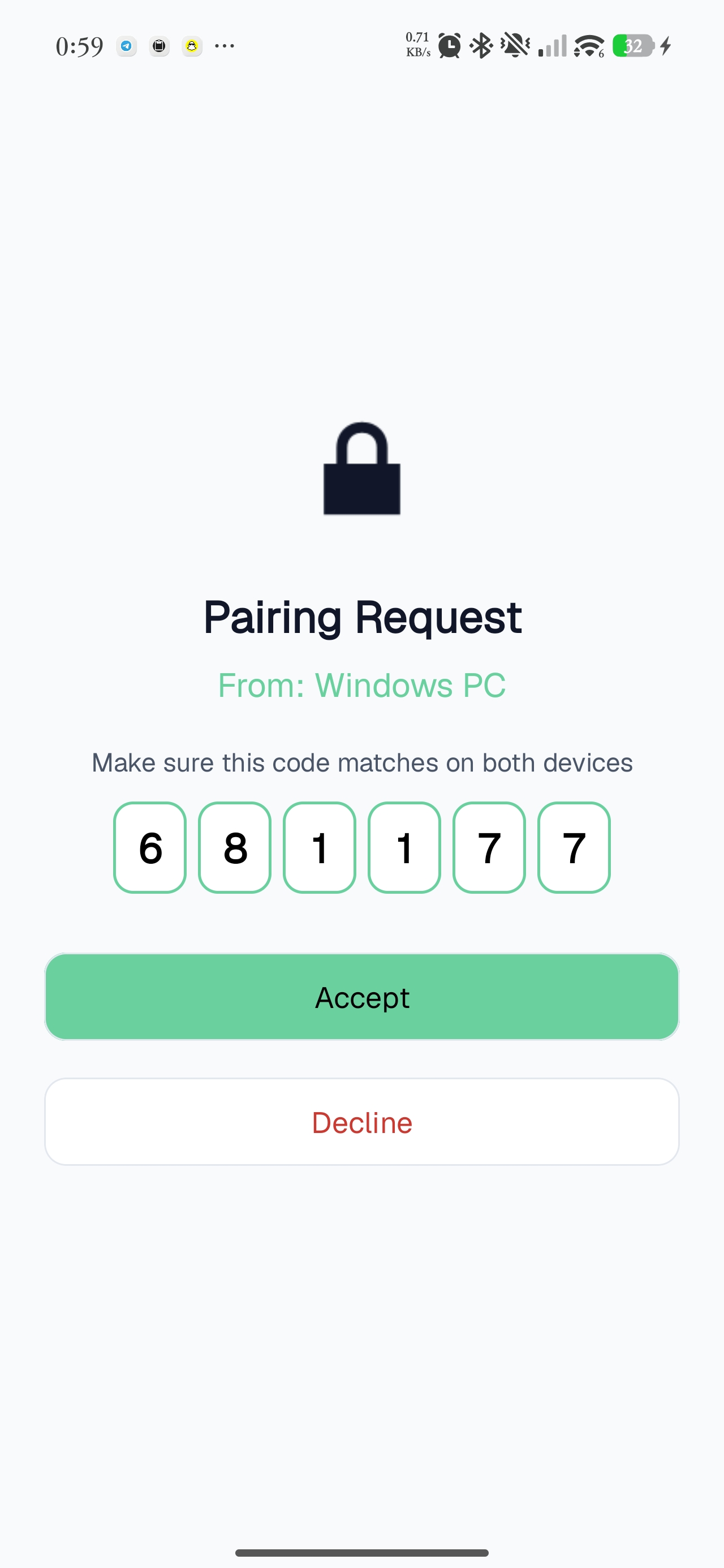
A 6-digit code from an ECDH key exchange. You confirm it matches, which stops man-in-the-middle attacks.
Every clipboard payload and file is AES-256 encrypted in flight; the clipboard uses authenticated AES-GCM. Nothing travels in the clear.
Per-pairing keys live only on your devices, never uploaded or shared.
No analytics, no ads, no third parties. The app simply doesn't phone home.
Clipboard sync, file transfer, off-grid QR transfer and AES-256 work on both. A few abilities depend on the hardware each platform has.
It's free, with no account. Pick your platform; your device is highlighted below.
You're on another platform. Clipboard Share runs on Android and Windows. Grab a build below and install it on a supported device.
Builds are published for Android and Windows.
No. On the same Wi-Fi it goes direct over your LAN; with no network at all it creates its own link via QR, NFC, Wi-Fi Direct or a hotspot bridge. Nothing routes through the internet.
Never. There are no servers and no account. Clipboard contents and files move straight between your paired devices, AES-256 encrypted, with keys stored only on your hardware.
It's a Short Authentication String derived from a secure key exchange. Both devices show the same number, and confirming they match proves you're connected to the right device and not an impostor.
Multi-gigabyte transfers are supported, with live per-file progress. If the connection drops mid-transfer it resumes rather than starting over.
Android installs from Google Play. The Windows version is a standard installer with a bundled runtime, so there is no Java to set up. It is not code-signed yet, so Windows may show a SmartScreen unknown-publisher notice the first time; choose More info, then Run anyway.